Batch-fill PDF forms from a spreadsheet
Drop in a fillable PDF and a CSV. Get one filled PDF per row: offer letters, leases, certificates, bid forms, done in seconds. Your files never touch a server. No signup, no watermark, no per-PDF fee.
A chatbot cannot batch-fill your PDFs. And if one could, you would be handing salaries and SSNs to a third party to do it. This runs on your device. Nothing is uploaded, and it keeps working with the Wi-Fi off.
Works offline · nothing uploaded
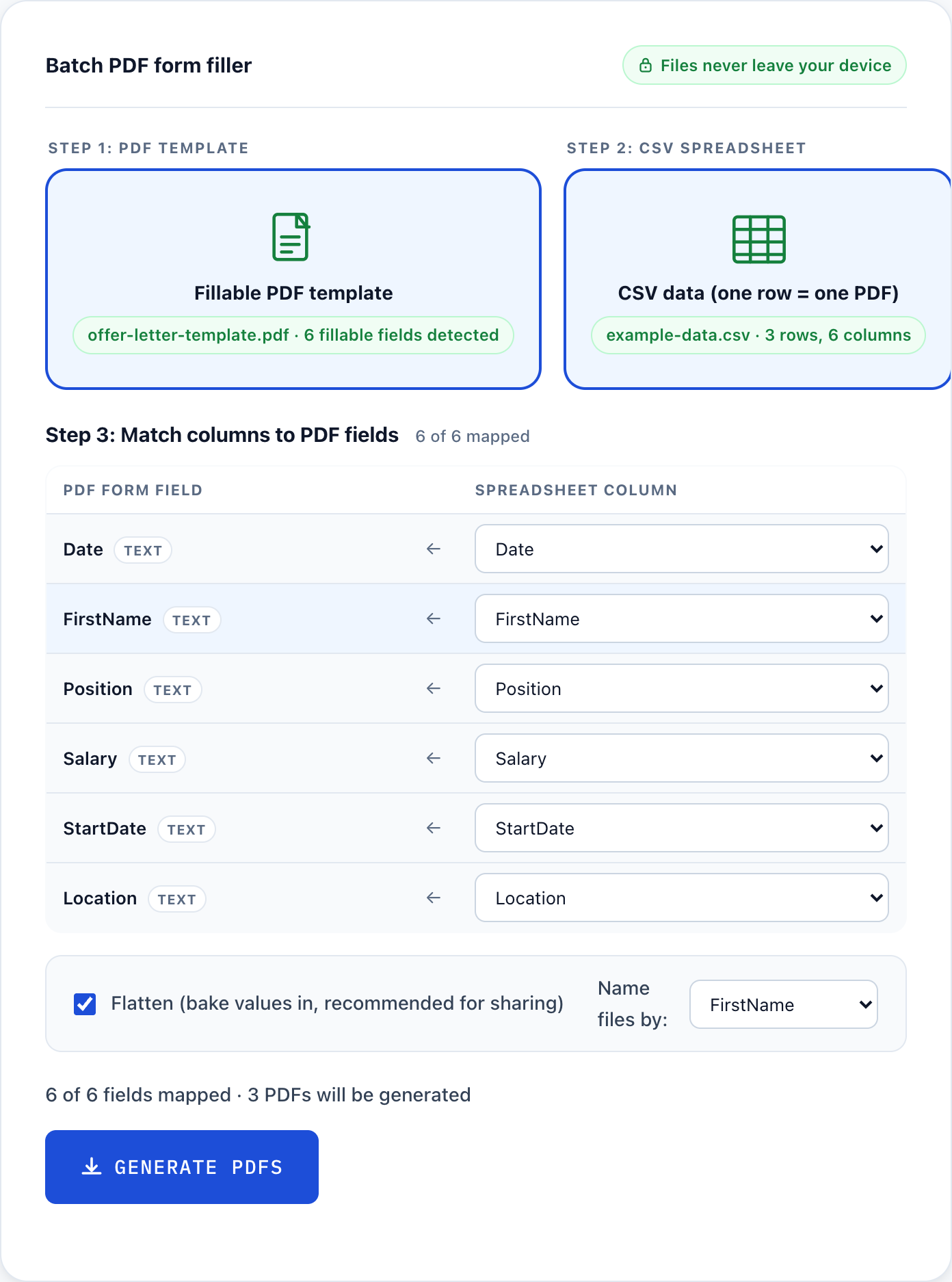
Step 3: Match columns to PDF fields
| PDF form field | Spreadsheet column |
|---|
Four steps, all on your device
Drop in your fillable PDF
Any AcroForm PDF with named fields works: offer letter templates, lease agreements, bid forms, certificates. Made in Acrobat, Word, or LibreOffice.
Drop in your spreadsheet
Export from Excel as CSV. Row 1 holds your column headers. Each row below becomes one filled PDF.
Check the auto-match
The tool matches CSV columns to PDF fields automatically. Fix any mismatches by hand in about ten seconds with the dropdowns.
Generate and download
Get every filled PDF as a ZIP, or merge into one file for printing. It all runs on your device. Turn off Wi-Fi and it still works.
Try it in one click with a real example
The fastest way to see it work: load a sample HR offer letter and a three-employee spreadsheet. The tool detects the fields, matches your columns, and shows the mapping. Then you just hit Generate.
- 1Load the example below, or drop your own fillable PDF and CSV into the tool.
- 2The tool reads the PDF on your device and auto-matches CSV columns to form fields.
- 3Check the mapping. Fix any mismatch with the dropdowns in about ten seconds.
- 4Hit Generate. You get one filled PDF per row, with a report of exactly what filled.
An offer-letter template with Date, First name, Position, Salary, Start date, and Location, plus a spreadsheet of three employees. Loads straight into the tool above.
How does the column matching work?
The tool compares each PDF field name to your CSV headers with case, spaces, and punctuation stripped. A field called "First Name" matches a column named "firstname", "FIRST_NAME", or "first-name". Each column is used at most once, and read-only fields are skipped. Anything without a match gets a dropdown, so you pick the column yourself.
A worked example
Say your PDF has three fields: "First name", "Salary", and "DateOfBirth". Your spreadsheet headers are "first_name", "salary", and "DOB". The first two match on their own, because "firstname" equals "firstname" once underscores and capitals are gone. "DOB" does not equal "dateofbirth", so that field shows a dropdown. You pick the DOB column once, and the choice applies to every row. If row 2 says Maya, 72000, 1994-03-08, her PDF gets exactly those characters in exactly those fields. The tool never reformats your values.
What counts as checked for a checkbox?
Checkbox columns accept yes, true, y, 1, x, checked, or on (any case) to tick the box, and no, false, n, 0, off, or unchecked to clear it. An empty cell is skipped and logged. Any other value, say "maybe", is reported as a failed cell with the reason, and the box stays unchecked.
Dropdowns and radio groups are stricter. The cell must match one of the options stored in the PDF, exactly. "Sales" fills a Department dropdown that offers Sales and Eng. Lower-case "sales" is rejected, and the report lists the allowed options so you can fix the spreadsheet.
What does the run report show?
Every cell of every row: filled, skipped because the cell was empty, or failed with a written reason, such as "Value is 61 chars but the field allows max 40". Repeated failures are grouped, so one wrong column across 200 rows reads as one line, not 200. The report is how you catch a mapping mistake before the letters go out.
What this tool can't do
- Flat or scanned PDFs have no form fields to fill. Check yours first with the PDF form inspector.
- Password-protected PDFs can't be written to. Remove the protection first, then retry.
- XFA dynamic forms get a warning. Values land in the standard field layer, but Acrobat may show the separate XFA layer instead, which can look empty.
- Signature and button fields can't be filled from a spreadsheet. They are skipped and noted in the report.
- Excel files must be saved as CSV first (File, Save As, "CSV UTF-8").
- Everything runs in your browser, so thousands of rows on a heavy template can hit browser memory limits. A few hundred rows is routine.
Before each release, 39 automated tests (1,901 checks) fill test forms, including the real IRS W-4 and W-9, then re-open every output PDF to confirm each value landed in the right field. A headless browser also runs the sample batch and fails the release if the page sends any upload request. More on how we build and check the tool.
Every other tool uploads your data. This one never does.
Your data stays on your device
Offer letters have salaries. Leases have SSNs. Bid forms have pricing. None of that should leave your machine. Open DevTools and watch the Network tab: nothing goes out.
Actually free, no catch
No signup, no watermark, no "5 free then pay", no per-PDF fee. DocSpring's cheapest plan is $49 a month. Fill 3 or 3,000 here at no cost. Ad-supported, that is it.
Real batch output
One filled PDF per row, named by any column you pick, zipped and ready. Or merged into one file for a single-run print job.
Learn the workflow
Short, practical guides for filling PDF forms from spreadsheet data.
- Fill PDF from Excel: Turn a spreadsheet of data into a stack of filled PDF forms, without uploading a single file.
- PDF mail merge: Mail merge for PDF forms the way Word does it for letters, but private and free.
- Offer letters: Salaries and names stay on your machine. Fill every offer letter in one pass.
- Fillable PDF explained: The tool needs a fillable PDF with named fields. Here is how to check yours and make one.
More free offline PDF tools
Small, focused tools that run entirely in your browser. No upload, no signup.
Frequently asked questions
Is this really free? What's the catch?
Free to use, no signup, no watermark on your PDFs, no per-file fee. The site shows ads. That's the trade. If you find it useful, leaving an ad running helps keep it free.
Are my files uploaded anywhere?
No. Everything runs inside your browser. Your PDF and spreadsheet never leave your computer. There's no server receiving your data. You could turn off your internet after the page loads and the tool would still work.
What kind of PDF does this work with?
Fillable PDFs with named AcroForm fields. If you open your PDF in Adobe Reader and can click into blank fields and type, it'll work here. Flat PDFs (scans, print-to-PDF documents with no form fields) won't work without adding fields first.
Can I use an Excel file directly?
Save it as CSV UTF-8 first. In Excel: File, Save As, then choose "CSV UTF-8 (Comma delimited)". In Google Sheets: File, Download, Comma Separated Values. Takes about 10 seconds.
How many rows can I process at once?
No hard limit. A few hundred rows on a typical form runs in under 30 seconds in most browsers. Very large PDFs with thousands of rows may slow down, but for normal office use you won't hit a wall.
What do I get as output?
Two downloads: a ZIP file with one filled PDF per row (named by the first column value), and a single merged PDF with all filled forms in sequence. Both download immediately after processing.